
How to Use Vrew: 5 Steps for Beginners Plus Free Plan Limits
If you want to finish your first subtitled video as quickly as possible, the fastest route is mastering five steps in Vrew's desktop app: auto-generate subtitles, correct them, cut the filler, export, and save the SRT file. I use Vrew regularly for short-form social content, and its text-based editing approach -- where you manipulate spoken words directly as text -- delivers serious time savings, especially if you've never been comfortable with traditional timelines.
This guide narrows the process down to five reproducible steps you can follow on the free plan, covering subtitle-correction techniques, the difference between hardcoded and soft subtitles, and the practical details you need as of March 2026: pricing and usage caps, the Free plan watermark, the mobile app shutdown scheduled for July 1, 2026, plus commercial licensing and asset considerations. By the end, you should be able to publish one complete video without second-guessing yourself.
What Is Vrew? A Quick Overview of What It Actually Does
The Full Feature Picture
Vrew is not a general-purpose video editor trying to replace everything else. It is an AI-powered video editing tool built around automatic subtitle generation and text-based editing. The official Vrew site highlights speech-recognition-driven auto-subtitles, text-based editing, AI voices, translation, and an asset library as the core feature set. The workflow philosophy is fundamentally different from Premiere Pro or DaVinci Resolve: instead of scrubbing a timeline, you start with transcribed text and shape the video from there.
The standout capability is auto-subtitle generation. Import a video or audio file, select the spoken language, and the speech recognition engine produces a transcript that doubles as your subtitle foundation. This matters because Vrew's real value is not flawless automation. It turns the painful process of typing subtitles from scratch into a correction-focused workflow. Manual subtitling means listening, typing, and adjusting timing entirely by hand. Vrew gives you a rough draft, and from there you fix misrecognized words, adjust phrase breaks, and clean up punctuation. That shift from creation to correction is where the time savings hit hardest.
The editing model is distinctive, too. You can delete unwanted segments by selecting text. Spot filler words like "um" or "uh" in the transcript, delete them, and the corresponding video segment gets cut automatically. For beginners, scanning readable text for problems is vastly easier than hunting through audio waveforms on a timeline. I rely heavily on this for short-form and explainer videos. Narrated content read from a prepared script tends to have fewer recognition errors, which makes the correction pass lighter -- Vrew and scripted audio are a strong match.
Beyond subtitles, AI voice generation is worth noting. The official site lists over 500 AI voices, making it viable for narration without recording. There is also a translation feature for preparing multilingual versions from a Japanese subtitle base. On the asset side, the desktop version provides access to 100,000 images, 10 million video clips, 200 BGM tracks, 1,000 sound effects, and 100 fonts. For straightforward explainers or short social videos, you can get surprisingly far without leaving Vrew.
As we walk through the actual steps below, the core workflow for side-hustle efficiency is: subtitle generation, error correction, filler removal, export, SRT archiving. Once you see Vrew as a tool optimized for this specific loop, its feature set clicks into place.
Where Vrew Excels and Where It Doesn't
Vrew thrives with speech-driven video content. YouTube explainers, course recordings, webinar archives, interview footage, and full-captioned social shorts all play to its strengths. When audio is the primary content layer, having a full transcript to scan before you start editing lowers the difficulty significantly. If your editing work centers on trimming, correcting, and displaying what someone said, Vrew's design philosophy fits directly.
Complex motion graphics, layered visual effects, color grading, and multi-track compositing belong to dedicated editors like Premiere Pro. Vrew has video output capabilities, but its strength is upstream: subtitle and text-based preprocessing. In practice, a realistic workflow is to build your transcript and subtitle foundation in Vrew, then move to Premiere Pro for final design and visual polish. SRT export makes this handoff straightforward.
One more thing to keep in mind: don't over-trust recognition accuracy. Auto-subtitles are helpful but will stumble on proper nouns, industry jargon, fast speech, and unclear enunciation. Treat the output as a working draft, not a finished product. The multilingual support covers English and other languages, but the same draft-first mindset applies across all of them.
For now, the desktop app is the primary platform. Windows and Mac versions are available. The mobile app offers convenience, but Google Play and App Store listings note that Vrew Mobile (iOS/Android) is scheduled to shut down on July 1, 2026. If you are building a sustainable workflow, anchor everything on the desktop version.
Vrew:編集を減らし、創造を増やす | オールインワンAIビデオエディター
Vrewを使って動画を作成しましょう。これは、あたかも文書のように編集できるオールインワンのAI編集ツールです。高品質なコンテンツを迅速かつ簡単に作成できます。無料で試してみてください。
vrew.aiConcrete Side-Hustle Use Cases
There are several specific scenarios where Vrew fits naturally into a side-hustle workflow. First: YouTube explainer videos. For product reviews, how-to content, or AI tool breakdowns where the narration is planned in advance, auto-generating subtitles and then polishing them is enough to noticeably improve watchability. Subtitles boost viewer retention and accommodate silent viewing, both of which raise the quality of deliverables.
Second: subtitling course videos and webinar recordings. Long-form content is brutal to subtitle manually, but Vrew lets you start with a full transcript so you can see the structure immediately. Repetitive explanations and false starts become easy to spot, and you can trim them in the same interface. The more closely the source audio follows a prepared script, the lighter the correction work -- in my experience, well-scripted recordings are where Vrew pays off most clearly.
Third: full-captioning social shorts. Short videos live and die by pacing, but subtitle readability matters just as much. With Vrew, you review spoken content as text first, which makes it easier to decide what to keep and what to cut. Removing filler words alone -- "so," "like," "well" -- noticeably tightens the rhythm, and the speed of the initial captioning pass makes it practical even for high-volume production.
Fourth: subtitle preprocessing for Premiere Pro or other editors. A workflow that performs well in practice is to finalize subtitle text and timing in Vrew, export as SRT, and then apply visual design on the finishing side. SRT carries text and timing data, so it works for YouTube uploads and for handoff to other editing software. Whether you deliver a burned-in video or supply a separate SRT file changes the workflow, and being comfortable with both formats is a quiet advantage in freelance work.
If you want the shortest path, the workflow is straightforward: import video into Vrew, auto-generate subtitles, fix recognition errors, cut filler, export the subtitled video. Then save the SRT separately so you have a reusable asset for YouTube soft subs or cross-tool workflows. The shift from building everything by hand to a correction-based process makes it realistic for beginners to actually finish that first video.
💡 Tip
In the early stages of your side hustle, think of Vrew as a "preprocessing tool that handles subtitles and spoken-word cleanup in one pass" rather than an all-in-one editing suite. That framing keeps you from misapplying it.
What to Prepare Before You Start Using Vrew
Why the Desktop App Should Be Your Default
You can use Vrew on a phone, but for both learning and ongoing production, the desktop app is the right anchor. The reasoning is straightforward: long-form editing, fine-grained subtitle corrections, and export workflows all run more smoothly on desktop. Vrew is not a "generate and done" tool. You generate subtitles, then correct misrecognitions, adjust phrase breaks, fix punctuation, optionally cut filler segments, and export as video or SRT. That entire chain is faster with a mouse and keyboard.
I do prioritize speed for short-form content, but once a source clip passes ten minutes or needs detailed subtitle formatting, the keyboard-driven workflow on desktop is noticeably more efficient. Tasks like aligning sentence breaks, batch-deleting filler words, and standardizing inconsistent terminology accumulate small delays on mobile that compound over multiple videos. The more videos you produce as a side hustle, the more that gap matters.
The desktop app ships for Windows and Mac, and it pairs well with Vrew's text-based editing approach. SRT export for YouTube workflows or handoff to Premiere Pro is straightforward from the desktop. The mobile version works for casual experimentation or light touch-ups, but for delivery-grade or volume production, the desktop app is the stable foundation. That is the practical call.
Here is how the two versions compare at a glance:
| Aspect | Vrew Desktop | Vrew Mobile |
|---|---|---|
| Strength | Text-based editing, long-form editing, SRT/XML export for integrations | Quick access from a phone |
| Weakness | Specific hardware recommendations are not published officially | Feature-limited, not suited for long-form editing |
| Primary use | Long-form editing, subtitle correction, export | Casual editing, trial use |
| Long-term viability | Solid foundation from beginner side hustles to professional work | Scheduled shutdown July 2026 makes it unreliable as a primary tool |
Checking Your Environment and System Considerations
Before installing the desktop app, confirm whether you are on Windows or Mac. Vrew is distributed as a desktop application, so set up a PC-based workspace rather than planning around mobile. Download from the official Vrew website.
One thing to note: specific CPU, GPU, and RAM requirements are not publicly detailed in official documentation. Blog posts and comparison articles sometimes cite numbers, but those can be outdated. Rather than quoting unverified specs, the practical guidance is: confirm your OS is supported, and understand that longer videos and multi-asset projects benefit from a machine with some headroom.
From hands-on experience, practice clips of 5 to 15 minutes run comfortably on most modern PCs. But when you are repeatedly previewing, correcting subtitles, exporting, and feeding files to other tools, a machine that does not stall on these operations reduces friction considerably. Vrew is text-based at its core, but it still handles video import, audio analysis, preview playback, and export -- it is not as lightweight as a text editor.
On pricing, the natural starting point is the Free plan, upgrading only when your workload demands it. Based on secondary sources as of March 2026, Free offers approximately 120 minutes per month of speech analysis, Light around 1,200 minutes, and Standard around 6,000 minutes. At 10 minutes per video, Free covers roughly 12 videos per month -- plenty for the learning phase. However, Free includes a watermark on exported videos, so if you need clean output for public or client-facing work, Light (approximately 1,024 yen / ~$7 USD per month) or above becomes the practical choice. Standard is reported at around 1,749 yen (~$12 USD) and Business at around 4,490 yen (~$30 USD), though these figures come from secondary sources, so verify against the official pricing page before making a decision.
Account registration is part of the setup. Vrew is not a standalone app you install and forget -- plan management and AI feature quotas are tied to your account. PC, app, account -- have all three ready before you start. If you are working as a sole proprietor versus using it in a team or company context, the considerations differ. Business plan terms are structured for organizations, so keep that distinction clear.
The Mobile App Shutdown and What It Means
The mobile app deserves explicit attention. Google Play and App Store listings state that Vrew Mobile (iOS/Android) will end service on July 1, 2026 at midnight. It is convenient for a quick trial, but not a viable foundation for anyone learning the tool now.
The implication goes beyond "the phone version is limited." It means your tutorials, muscle memory, template workflows, and file management should all be built around the desktop version from the start. For side-hustle work, you need repeatable processes -- not just the ability to produce one video. Investing your learning time in an app that is going away risks forcing a full workflow reset later.
The mobile app does have merits: quick auto-transcription, simple edits on the go. But for the tasks where Vrew's strengths matter -- refining subtitle accuracy, organizing longer footage, exporting SRT for reuse, handing off to other software -- the desktop version is the natural fit. A useful mental model: "temporary mobile tool for on-the-go checks" and "desktop as the permanent home base" are separate roles. For Vrew, the home base is the desktop app.
Setup Checklist
When you are ready to start, having the right setup matters more than having elaborate equipment. Here is the minimum:
- PC
A Windows or Mac machine. If you plan to work on anything beyond short clips, a desktop-anchored workflow is the assumption.
- Vrew App
Install the desktop version and confirm it launches. Getting this done early removes a friction point.
- Account
Start with Free. Your account manages usage quotas and plan features, so create it before you need it.
- A 5-to-15-minute practice clip
Do not start with your longest or most important footage. A single-speaker recording with low background music is ideal for learning the workflow.
- Headset or microphone
Better recording quality means fewer subtitle corrections. Even if you do not have an external mic, a setup that captures clear audio makes a noticeable difference.
- External storage location
Having a dedicated place for SRT files and project assets simplifies YouTube subtitle management and cross-tool workflows down the road.
The key mindset at this stage: Vrew is not "install and go." Subtitle accuracy depends on source audio quality, and if you plan to use SRT files later, your folder structure matters more than you might expect. For my first practice sessions, I separated folders for subtitle corrections, video exports, and SRT archives. That small amount of organization removed a surprising amount of confusion from the actual editing process.
💡 Tip
For practice footage, pick a video with a single speaker, minimal background music, and a runtime between 5 and 15 minutes. Starting with multi-speaker conversations or noisy recordings means you will spend more time fighting recognition errors than learning Vrew's interface.
The 5 Core Steps of Working in Vrew
Step 1: Installation and Initial Setup
Start by installing the desktop Vrew app, logging in, and getting to the point where you can create a new project. This is not a complex step, but everything downstream -- subtitle generation, editing, export -- depends on it, so getting a clean start matters. Vrew is available for Windows and Mac from the official site. It is a native desktop app, not a browser tool.
The workflow: install the app, log in with your account, and create a new project. First-timers sometimes stall on language settings or save-location prompts, but naming your project upfront streamlines file management at export time. I use a "date_projectname_duration" convention from the start. It prevents video exports and SRT files from getting mixed together later.
Expect 5 to 10 minutes from download to a ready workspace. The two common stumbling points are treating the app like a browser tab you can close without thinking, and not setting a clear save location. Vrew outputs subtitle files and video exports that you will reference repeatedly, so creating one project folder at the start is far easier than cleaning up a scattered desktop afterward.
Step 2: Importing Media and Setting the Language
Next, import your video or audio file and set the recognition language. After creating a new project, load your MP4 or audio file to hand Vrew the raw material. The key here is restraint: do not dump multiple files in at once. For your first attempt, a single-speaker clip with low background music gives you the best conditions to learn while seeing how the recognition performs.
After import, select the language for speech recognition. For a Japanese-language video, set it to Japanese; for English, set English. Getting this wrong does not just hurt accuracy -- it puts you in a state where corrections become disproportionately expensive. A common beginner mistake is leaving the language on a default that does not match the audio.
This step takes about 3 to 5 minutes. The stumbling points: skipping the language setting entirely after a successful import, and using a noisy source file that makes you blame Vrew's recognition when the real problem is audio quality. Being honest about it, this stage determines how much correction work awaits you. Multi-speaker or noisy recordings are processable, but for a first run, single-speaker material gives you a much cleaner learning experience.
Step 3: Auto-Subtitle Generation and Phrase Formatting
With media imported and language set, run the auto-subtitle generation. This is where Vrew's design philosophy becomes tangible: it analyzes the audio, produces a transcript, and lets you edit everything as text. Processing speed can be impressive -- there are documented cases of a 63-minute video being transcribed, split into clips, and ready for text editing in roughly 90 seconds. Compared to manual transcription, the difference in workload density is stark.
But the auto-generated output is a foundation, not a finished product. The first thing to check after generation is not individual typos -- it is phrase segmentation. Lines that are too long, breaks in awkward places, missing punctuation, inconsistent sentence endings -- fixing these alone transforms subtitle readability. Use Vrew's split and merge controls to reshape each subtitle block into chunks that are comfortable to read at playback speed.
I make it a practice to standardize proper nouns early in this step. Product names, service names, personal names -- hunting these down one at a time later is inefficient. Either maintain a mental term list or use find-and-replace to align them in bulk. This matters most in videos where the same term appears repeatedly. Before diving into fine corrections, sweep the entire transcript for terminology inconsistencies first. The payoff compounds quickly.
Budget 10 to 20 minutes for a 5-to-10-minute video. The mistakes to watch for: assuming auto-subtitles are correct as generated, and fixing misrecognitions while ignoring phrase structure. Readable subtitles require more than accurate words. Where you break lines, how you place punctuation, and whether sentence endings are consistent all determine whether the viewer actually absorbs the information.
💡 Tip
For error correction, resist the urge to fix things in the order you find them. Instead, start with proper nouns and frequently repeated filler phrases -- align those globally first. The remaining fine-tuning becomes significantly lighter.
Step 4: Cutting Filler and Refining the Text
With your subtitle structure in place, move to removing unnecessary segments while polishing the subtitle text. Vrew's text-based editing makes it straightforward to locate filler words -- "um," "uh," "so," false starts, retakes -- almost as if you were scanning a document. Select the offending text block, cut it, and the corresponding video segment disappears too.
A practical tip: do not separate cutting and text refinement into distinct passes. After deleting a segment, the surrounding sentences sometimes read awkwardly. Check the flow immediately after each cut and smooth out particles, conjunctions, and sentence endings on the spot. Decide now whether you are keeping a conversational tone or tightening toward written-style prose; settling that question during this step keeps the overall voice consistent.
This pass typically takes 10 to 20 minutes. Common pitfalls include focusing so heavily on video cuts that you break subtitle readability, and getting lost in micro-edits while losing sight of overall pacing. For side-hustle video work, subtitles that communicate meaning clearly and flow well are more valuable than a perfect verbatim transcript. I learned this the hard way -- my early attempts preserved every word faithfully, but the deliverables that actually looked professional were the ones edited for rhythm and clarity.
For efficiency, avoid fixing the same inconsistency multiple times. If "Vrew" appears as "vrew," "VREW," or a phonetic variant, batch-correct all instances at once rather than fixing them individually. Vrew's text-editing interface rewards the same approach you would take in a word processor: global fixes first, local refinements second.
Step 5: Subtitle Styling and Export
Once editing is complete, adjust the visual presentation of your subtitles and export. This means setting font, size, color, background, and position to match your video's style. Vrew provides access to a substantial asset library -- the official figures cite 100,000 images, millions of video clips, 200 BGM tracks, 1,000 sound effects, and 100 fonts. That said, restraint in subtitle design tends to produce better results for professional use. Start with readability: white text with an outline or a semi-transparent background bar is a reliable baseline.
For export, understand two approaches. The first is burning subtitles into the video (hardcoded subtitles). This works well for social media posts and direct distribution -- subtitles are always visible regardless of the viewer's player settings. The second is exporting subtitles as a separate file; Vrew supports SRT export. SRT files contain text and timing data, making them useful for YouTube uploads, handoff to other editing software, or future revisions. Note that SRT does not preserve formatting like font or position -- it is a content-and-timing container.
The practical workflow: export your finished video, then also export the SRT as a separate file. If you only export the burned-in video, any subtitle correction later means re-rendering the entire video. For YouTube workflows or Premiere Pro integration, keeping both the video and the SRT is the natural approach.
This step takes about 5 to 10 minutes. Watch out for spending too long on design tweaks and for exporting the video without saving the subtitle file. If you plan to produce videos regularly, template your subtitle style so you are not starting from zero each time. Visual polish matters, but making it repeatable is what accelerates your second, third, and tenth video.
What the Free Plan Covers and When to Consider Upgrading
Plan Comparison
Vrew's free tier is generous enough to learn on, but if you are using it for side-hustle work, understanding where the paid plans kick in saves you from mid-project surprises. As of March 2026, secondary sources comparing Vrew plans indicate that the main differentiators across Free, Light, Standard, and Business are monthly speech analysis minutes, AI voice generation character limits, and watermark presence.
| Plan | Monthly Price (Reference) | Speech Analysis/Month (Reference) | AI Voice Generation (Reference) | Watermark |
|---|---|---|---|---|
| Free | 0 yen ($0) | 120 min (secondary source) | 10,000 chars (secondary source) | Yes |
| Light | ~1,024 yen (~$7 USD, secondary source) | 1,200 min (secondary source) | 100,000 chars (secondary source) | No |
| Standard | ~1,749 yen (~$12 USD, secondary source) | 6,000 min (secondary source) | 500,000 chars (secondary source) | No |
| Business | ~4,490 yen (~$30 USD, secondary source) | Higher (contract-based) | Not disclosed | No |
ℹ️ Note
The prices and limits above are estimates based on secondary sources as of March 2026. Always verify against Vrew's official pricing page before making any purchasing decisions.
The biggest practical factor here is the Free plan watermark. Multiple secondary sources report that Free exports include a Vrew logo watermark at the beginning of the video, though details about duration and placement vary across sources. Check the actual export behavior or the official FAQ for current specifics. For learning and internal testing, the watermark is a non-issue. For social shorts where the first few seconds determine whether someone keeps watching, a visible logo is a real concern.
On the capacity side, Free is more usable than you might assume. At 120 minutes per month, you can process roughly 12 ten-minute videos or about 8 fifteen-minute videos. This is not a token free tier. It is enough to learn the workflow and evaluate whether Vrew fits your content format. The 10,000-character AI voice allowance also supports experimenting with short narrated videos.
The real trigger for upgrading is not "I ran out of features" but "my delivery requirements exceed what Free can handle." The moment a client project requires watermark-free output, or the moment you are consistently producing five or more videos per month, moving to Light or Standard removes the overhead of rationing your free quota and worrying about logo visibility on every export.
💡 Tip
Pricing figures here are based on secondary sources from March 2026. Plans and prices change, so treat the official Vrew pricing page as the authoritative reference at the time you are reading this.
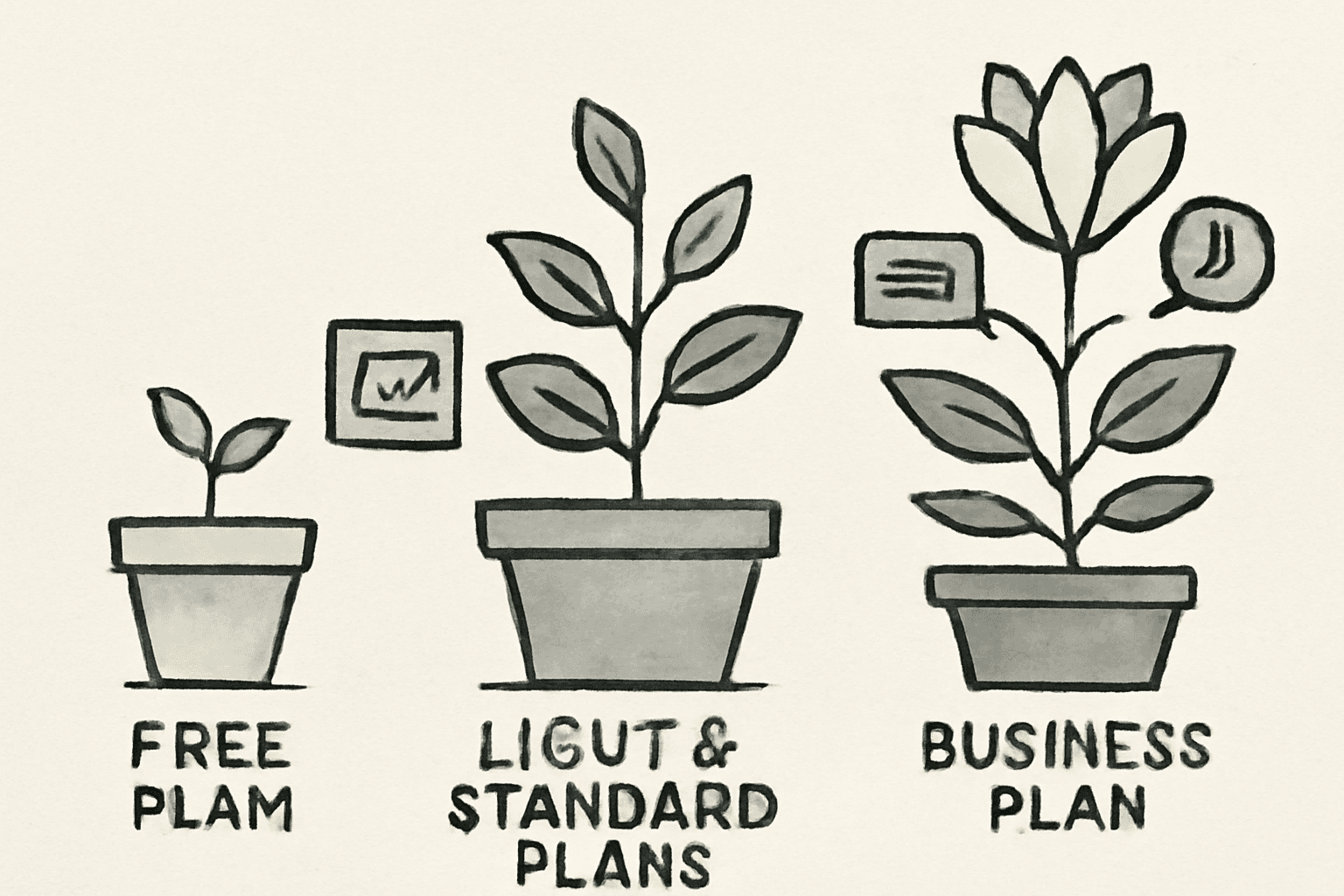
Vrew料金プラン比較|無料からBusinessまで機能差と選び方解説 | Hakky Handbook
本記事ではVrewの各料金プランの詳細と機能差を解説し、ユーザーが最適なプランを選べるようにします。プランごとの月額料金や年額割引率、音声解析やAI生成の具体的な数値を紹介しています。これにより、コストパフォーマンスや用途に応じた賢いプラン
book.st-hakky.comChoosing the Right Plan for Side-Hustle Work
Plan selection is not about picking the cheapest option. The better framework is: how many videos per month, public or client-facing, and is a watermark acceptable?
If you are producing 10-to-15-minute YouTube videos at a pace of one per week, your monthly source footage totals roughly 40 to 60 minutes. That fits comfortably within the Free plan's 120-minute cap. For the initial phase -- establishing your editing workflow on your own channel -- Free is a practical starting point.
The equation changes for client deliverables. Free exports carry a watermark, which is incompatible with most professional delivery expectations. Very few clients will accept branded watermarks from your editing tool. If client work is in the picture, budget for Light or above from the start. I take this seriously: whether something is technically possible on the free plan matters less than whether it meets delivery standards.
Light fits the stage where you are producing consistently as a solo side hustler. With 1,200 minutes of analysis per month, that is roughly 120 ten-minute videos or 80 fifteen-minute videos in theory. Real-world usage includes re-edits and test exports, so actual throughput is lower, but the buffer is substantial for individual use. The 100,000-character AI voice quota also opens the door to narration-driven content.
Standard becomes relevant when production volume steps up. At 6,000 minutes per month, it serves creators running multiple ongoing projects or processing long-form content regularly. The value is not just the higher cap -- it is the freedom to re-export, swap assets, and handle revision requests without watching your quota. I would move to Standard once I had five or more regular monthly productions plus the revision and alternate-format work that comes with them.
Business is positioned for organizations and teams. Secondary sources sometimes cite the monthly price, but the actual terms -- analysis caps, contract conditions -- vary by agreement. Check the official pricing page or contact sales for current details.
Upgrade Decision Framework
Deciding when to upgrade works better as a checklist than a gut feeling. Run through these questions in order:
- Are you publishing commercially or delivering to a client?
- Is a watermark on the output acceptable?
- Does your monthly analysis volume exceed Free's 120 minutes?
- How much AI voice generation do you need?
- Do the asset and voice licensing terms meet your project requirements?
Mapping these to a decision: if you are in the learning or personal-project stage and the watermark is not a problem, Free works. Once commercial publication or client delivery enters the picture, the watermark restriction almost always pushes you to Light or above. If your monthly analysis regularly exceeds 120 minutes, the overhead of managing a free quota is not worth it -- move to Light. When multiple concurrent projects push your total volume higher, Standard is the realistic choice.
One factor that gets overlooked: client requirements around assets. Vrew's official site describes its images, videos, BGM, and other assets as available for commercial use, but specific conditions can vary by asset and by project context. I check not only watermark status but also "can I use this specific asset in this specific deliverable?" and "are there attribution requirements for the AI voice?" before delivery. In side-hustle work, speed matters, but a post-delivery licensing issue costs more than any editing time you saved.
A one-line summary for when you are unsure: Free for learning, Light for deliverables, Standard when production volume grows. This framing avoids both overspending and the friction of trying to stretch a free plan past its practical limits.
Getting Your Vrew Subtitles Into YouTube and Other Tools
SRT Export and Practical Tips
Vrew subtitles become significantly more valuable when you treat them as portable assets rather than locked-in video elements. The foundational format is SRT. An SRT file contains subtitle text and timecodes, but does not carry font, positioning, or styling information. Think of it as a container for subtitle content and display timing, not a design file.
For long-form YouTube videos, this portability is extremely useful. My workflow for longer explainers is to finalize subtitles in Vrew, then save the SRT alongside the video export. This makes it easy to update subtitles independently of the video, correct a line of text without re-rendering, or prepare multilingual versions later. If you only export a burned-in video, even a one-word correction means re-exporting the entire file -- a small inefficiency that adds up.
Regarding VTT (WebVTT): SRT export is officially supported, but VTT export has not been clearly confirmed in primary documentation. If your workflow depends on VTT, verify availability through Vrew's official FAQ or support before committing. SRT-based workflows are the safer bet.
💡 Tip
If you plan to reuse subtitles downstream, make it a habit to export both the finished video and the SRT file every time. Compared to video-only exports, this adds seconds to your workflow and saves significant rework later.
As a reference point, there are documented cases of a 63-minute video being transcribed, split into clips, and ready for text editing in approximately 90 seconds. The real value here is not raw speed -- it is how quickly Vrew produces material you can hand off to the next stage of your workflow. Accuracy refinement and proper noun corrections are still your responsibility, but the speed of the initial pass is a genuine advantage.
Hardcoded vs. Soft Subtitles: Choosing the Right Approach
A frequent source of confusion is whether to burn subtitles into the video or keep them as a separate file. The short version: burned-in or kept separate, and the right choice depends on where the video will be published.
| Aspect | Hardcoded Subtitles | Soft Subtitles |
|---|---|---|
| Format | Subtitles baked into the video | Separate SRT/VTT file |
| Strength | Always visible regardless of player settings | Toggleable, multilingual-ready, reusable |
| Best for | Social media, short-form video | YouTube, LMS platforms, re-editing workflows |
| Trade-off | Corrections require re-export | Requires file management |
Hardcoded subtitles embed the text directly into the video frames, so they are always visible. This is a clear advantage on Instagram Reels, TikTok, and YouTube Shorts where silent autoplay is common and you cannot rely on the viewer enabling captions. I default to burned-in subtitles for short-form content. The ability to control outline, spacing, and placement means you can optimize for thumb-stopping readability during scroll.
For YouTube long-form and course content, soft subtitles are the more practical choice. A separate SRT file lets viewers toggle captions on or off, supports multilingual tracks, and allows subtitle-only updates without touching the video. My YouTube workflow for longer content is almost entirely soft-sub based. When you factor in subtitle corrections, translations, and potential handoff to another editor, the flexibility of a separate file is dramatically better than a burned-in approach.
The operational rule: social content that needs immediate visibility gets hardcoded subs; YouTube content with a longer shelf life gets soft subs. Shorts prioritize compatibility and visual impact, long-form prioritizes flexibility and maintainability. For the same source footage, it is entirely normal to produce a hardcoded short-form cut and a soft-subbed full-length version.
Working With Premiere Pro and Other Editors
Vrew does not have to be your only tool. In practice, it becomes most powerful as the subtitle-preprocessing layer that feeds into a finishing editor. The workflow with Adobe Premiere Pro is especially natural: build your transcript and correct subtitles in Vrew, export SRT or Premiere-compatible XML, then handle design and visual polish in Premiere Pro.
The division of labor is clear. Vrew is fast at text-based editing -- reorganizing spoken content, removing filler, and standardizing phrasing. Premiere Pro handles complex motion, brand-specific subtitle design, and multi-layer compositing. Vrew handles the speed-oriented cleanup; Premiere Pro handles the design-intensive finishing. Using both eliminates redundant work.
Adobe's documentation confirms that Premiere Pro supports SRT import, allowing you to load subtitle files as captions within a project. The timing work you did in Vrew carries over, so you are not starting from zero. For projects with heavy dialogue -- interviews, lectures, panel discussions -- the time saved by preprocessing in Vrew is substantial.
XML export serves a different purpose than SRT. Where SRT is a subtitle file, XML carries editorial structure that allows timeline-aware workflows in the receiving editor. TXT export, meanwhile, is better suited for transcripts, article drafts, or client review documents rather than subtitle work. Keeping these three output types mentally organized prevents confusion about which format to use when.
From my own production experience, the shift that unlocks the most value is stop thinking of Vrew as a "simple editing app" and start treating it as a subtitle and text organization layer. Subtitles preprocessed in Vrew can be styled as bold social-media captions or clean YouTube captions depending on the finishing editor. Even at the side-hustle stage, understanding this integration path makes it easier to scale into more demanding projects later.
Avoiding Commercial and Copyright Issues
Commercial Use: What Is and Is Not Covered
Vrew's official site states that videos created with the tool can be used for commercial purposes without copyright concerns. For anyone monetizing YouTube content or producing client videos as a side hustle, that baseline is reassuring. But there is an important distinction: "using Vrew to make a video" and "every asset and voice inside that video being unconditionally free to use" are not the same statement. In practice, this separation matters significantly.
The area most likely to be overlooked: images, videos, BGM, sound effects, fonts, and AI voices available within Vrew may each carry individual usage conditions. The product page highlights commercially usable free assets and 500+ AI voices, but for client work, "probably fine" is not a sufficient standard. I maintain a per-project log of every asset used, paired with its license reference. When a client asks for usage documentation later, the lookup is fast.
AI-generated content adds another layer of care. AI voices are convenient, but specific voices may have attribution or scope requirements. Beyond that, if your generated video includes recognizable faces, voices, names, or brand elements from third parties, copyright is only one consideration -- personality rights and publicity rights may apply regardless of which tool you used. The practical framing: Vrew provides a commercial-use-friendly platform, but rights clearance for published content needs to happen at the individual asset level.
Note: this section provides general operational guidance, not legal advice.
Asset Licensing and Restricted Uses
When evaluating asset licenses, "commercially usable" is the starting point, not the finish line. What matters in practice is whether attribution is required, which uses are prohibited, and what redistribution restrictions exist. BGM that is cleared for commercial use may prohibit distribution of the audio track in isolation. Fonts licensed for video use may require separate clearance for logos or trademark registration. Image and video assets may carry restrictions on sensitive or controversial subject matter.
The Free plan watermark is a separate issue from copyright, but it is equally relevant to commercial use. Free exports include the Vrew logo, which is a non-issue for internal tests and learning but a problem for client deliverables, landing page embeds, and ad creatives. Discovering this after a client review is worse than the watermark itself -- it is a credibility hit. Distinguish clearly between situations where the watermark is tolerable and where it is not.
AI-generated content rights require the same scrutiny as asset rights. For AI voices and generated images, check whether usage rights are clearly defined, whether there are model-origin restrictions, and whether the terms of service prohibit specific uses. For video content featuring real people, consent and likeness rights take priority over tool convenience. Interview videos, recruitment content, and storefront features all put people front and center -- editing-tool capabilities are secondary to whether everyone on camera has agreed to the publication scope.
Plan Selection for Business and Professional Use
For organizations, plan selection involves more than analysis quotas and watermark removal. The operational question is who holds the account, and who bears responsibility for asset usage. When contractors, in-house staff, and production agencies overlap, questions like "whose account downloaded that music track?" and "is this font cleared for the client project?" become ambiguous fast. The Business plan is recommended for organizations precisely because it provides a framework for managing these concerns.
Solo freelancers running multiple concurrent client projects may also find that an individual plan does not adequately cover their operational reality. The gap between casual personal use and delivery-grade client work is not about editing skill -- it is about watermark control, asset provenance, and consent documentation. In my experience, single YouTube projects and ongoing client retainers demand very different levels of rigor.
Pre-Publication Checklist
Before publishing or delivering, running through a structured checklist catches problems that intuition misses. The items I verify cover both rights and presentation -- a properly licensed video with a visible watermark is still not deliverable, and a polished-looking video with unclear asset rights is still a risk.
Minimum pre-publication checks:
- Vrew's terms of use align with how you used its features in this project
- Each image, video, BGM, sound effect, and font has been checked for commercial use clearance, attribution requirements, and prohibited uses
- The delivery format does not constitute redistribution of raw assets
- AI-generated voice and asset usage falls within the terms-of-service rights scope
- No unresolved issues with likeness rights, publicity rights, or trademarks for any person, location, or brand shown in the video
- Publication scope and usage purpose have been agreed upon with any featured individuals and the client
- Free plan watermark is not present in the exported video (if applicable)
- Client deliverable meets all branding, attribution, and formatting requirements
This kind of verification is unglamorous work, but in practice it builds more trust than editing polish does. Side-hustle video production favors people who are reliable to work with, not just fast. Vrew accelerates the editing side, but the pre-publication pass is what moves your output from "done quickly" to "ready for professional delivery."
Common Mistakes and How to Avoid Them
Language Setting Errors
When auto-subtitles come out garbled, beginners often overlook the most basic cause: the language was set incorrectly. Processing a Japanese speaker with an English-biased setting, or vice versa, produces output where individual words might look plausible but sentences fall apart. Videos that mix Japanese and English are especially tricky -- running the whole file through a single language setting tends to corrupt the minority language segments, creating a cascade of corrections.
Audio recognition is dramatically easier to get right on the first pass than to fix afterward. For product reviews or tutorials with frequent English brand names mixed into Japanese narration, processing everything as one language means the foreign-language terms will be mangled throughout. My approach for mixed-language footage is to plan for segmentation rather than hoping a single pass will handle both languages. That avoids the scenario where a language mismatch in the first minute causes corrections all the way through the final minute.
Misrecognitions and Inconsistent Terminology
The real danger with auto-subtitles is not that errors exist -- it is leaving errors in place while you keep editing. Company names, product names, personal names, place names, and numbers will propagate the same mistake throughout the video if the first occurrence is not caught. "Vrew" appearing as a phonetic variant, "AI" rendered inconsistently, numbers alternating between formats -- small inconsistencies like these erode the perceived quality of the finished product.
I handle this with search-and-replace rather than hunting errors one by one. Proper nouns and numbers, in particular, benefit from a single bulk correction pass that elevates the entire transcript at once. Standardizing terminology in the first half of the video also makes errors in the second half easier to spot, since you have already established what "correct" looks like.
Filler words follow the same logic. Leaving "um," "uh," and verbal tics in the transcript makes subtitles feel sluggish. I search for the most common fillers in a batch and remove them before reading through the full transcript. That single action tightens the pacing and makes the subtitle track feel noticeably more polished. Tighter subtitles also correlate with better retention -- viewers are less likely to tune out when the text on screen moves with purpose.
Punctuation and Line Breaks
A completed transcript is not yet a readable subtitle track. Beginners tend to focus on word accuracy while the actual readability bottleneck is punctuation and line structure. Too few commas and the text feels breathless; too many and the subtitles look cluttered. A rough guideline: one comma per sentence keeps the visual weight manageable on screen.
Line breaks matter just as much. On mobile devices, long single-line subtitles are painful to read. Aiming for one to two lines per subtitle block, breaking at natural semantic boundaries, immediately makes subtitles feel like they belong in a video rather than a document. Even without rewriting anything, shorter sentence segments dramatically improve readability. Spoken language dumped verbatim onto the screen carries too much information density -- the viewer's eye wanders.
💡 Tip
Auto-subtitles become more useful when you optimize for "instantly scannable" rather than "textually accurate." Subtitles are not manuscripts -- they are information overlaid on moving images. Adjust with that in mind.
Audio Quality
Subtitle accuracy is not purely a software issue. Source audio quality is frequently the dominant factor. Overlapping speakers, strong room reverb, and environmental noise from HVAC or traffic all increase correction work regardless of which tool you use. Speech recognition struggles less with complex vocabulary than with audio that is physically hard to parse.
The recording-stage investment that pays off most is microphone positioning and distance. For narration and explainer content, a directional microphone aimed at the speaker's mouth produces more stable recognition. A pop filter for plosive-heavy speech is a small addition that meaningfully improves clarity. Post-production can rescue some audio issues, but when the source recording is rough, correction time spikes. Projects where subtitle correction drags on are usually decided at the recording stage, not the editing stage.
Accuracy Differences Across Languages
Experiencing strong results in one language and disappointing results in another is not unusual. English speech recognition, for example, can deteriorate noticeably when speech rate increases due to the connected nature of English pronunciation. Non-native English speakers and native speakers also produce different error patterns, so correction strategies that work for one may not transfer to the other.
When this happens, a pragmatic approach is to compare Vrew's output against YouTube's auto-captions and use whichever performs better. YouTube's English recognition sometimes produces more natural word choices, while Vrew may handle sentence segmentation more cleanly. The productive habit is flexibility -- in side-hustle work, finishing accurately and on time matters more than loyalty to a single tool.
Risks of a Mobile-First Approach
The impulse to start on a phone is understandable, but building your Vrew workflow around the mobile app carries real operational risk. The mobile version is slated for shutdown on July 1, 2026 per app store listings, making it a poor investment for anyone learning the tool with long-term use in mind. It serves for quick experiments, but not for the kind of repeatable workflow that client work or consistent publishing demands.
Subtitle editing also involves more detail work than it might seem. Catching terminology inconsistencies, adjusting line breaks, reviewing the full transcript for patterns -- all of these benefit from screen real estate. My own experience confirms that longer videos on mobile slow down correction speed and increase oversight errors compared to the desktop version. If you are going to invest time learning a tool, direct that investment toward the platform you will actually use long-term.
Wrapping Up: Your Action Plan for Finishing One Video Today
Anchoring your workflow on the desktop version pays off when you start taking on paid work. Subtitles are not finished when they are auto-generated -- they become usable after you correct them. Keeping the distinction between burned-in subtitles and SRT-based subtitles in mind gives you flexibility across different publishing contexts.
Your three tasks for today:
- Install Vrew's desktop app and import one 10-to-15-minute video clip
- Generate auto-subtitles on the free plan and run a correction pass for proper nouns, punctuation, and line breaks
- Save the SRT file, and optionally export a burned-in subtitle version as well so you can compare them side by side
I recommend producing both a hardcoded version and a soft-sub version from the same source material in your first practice session. The difference in re-editability and visual consistency is immediately apparent, and doing this comparison once makes it much easier to decide which approach fits each future project.
Before you publish anything, verify the terms of use, check your asset licenses, and confirm whether the Free plan watermark appears in your export. Once you finish that first video today, Vrew shifts from "a tool I have been meaning to try" to a process you can actually run.
Related Articles
How to Start an AI Narration Side Hustle | Earning $65-$330/Month Realistically
An AI narration side hustle means turning scripts into polished AI-generated voiceovers for clients. Working 5-10 hours per week, a beginner with a day job can realistically aim for 10,000-50,000 yen (~$65-$330 USD) per month by targeting product demos, corporate training, e-learning, and audio guide deliverables -- either as standalone audio files or embedded in MP4 videos. Recommended starter tools include Ondoku-san for easy testing, Audacity for editing, and DaVinci Resolve if y...
How to Start an AI Video Editing Side Hustle — From Zero Experience to $330/Month
Even with just 5 to 10 hours a week to spare, you can realistically earn your first income by focusing on short-form video editing while letting AI handle repetitive tasks. My own workflow with Vrew and CapCut for producing short videos — automating subtitles and leveraging templates — brought each edit down to roughly 2 to 3 hours.
How to Start a YouTube Side Hustle with AI | No Face Required
Want to start a YouTube side hustle without showing your face, but worried about whether you can actually manage it alongside a full-time job? This guide is for office workers in their 30s who have dabbled with ChatGPT. Instead of fixating on face-on vs. faceless, we focus on planning, information value, and originality as your competitive edge, walking you through choosing one sustainable channel format.
How to Start an AI Short Video Side Hustle | TikTok, Reels & Shorts Strategy
AI short-form video side hustles break down into two very different paths: taking on editing gigs or growing your own account. This guide compares TikTok, Instagram Reels, and YouTube Shorts side by side, then walks you through choosing a platform and publishing your first video—even with zero experience.